Course Content
Computer Fundamentals
Computer Fundamentals refers to the basic concepts and knowledge of computers, including their parts, functions, and uses. It helps beginners understand how computers work and how they are used in daily life, education, business, and technology. It includes: Basics of Hardware and Software Input and Output Devices Operating Systems MS Office Applications Internet and Email Usage File Management and Data Storage Basic Computer Operations Computer fundamentals are important for developing digital skills and improving efficiency in today’s technology-driven world.
0/1
MS Word
1. Word Interface The Word Interface is the main screen of Microsoft Word where users create and edit documents. It includes tools like the Ribbon, Toolbar, Menu Bar, and Workspace for easy document management. 2. Typing & Formatting Typing and Formatting help users write and organize text professionally. Users can edit text, change styles, adjust spacing, and improve document appearance. 3. Fonts, Colors & Alignment MS Word allows users to customize text using different: Font styles Font sizes Text colors Bold, Italic, Underline options Alignment (Left, Center, Right, Justify) These features make documents attractive and readable. 4. Tables & Page Design Users can create tables to organize information in rows and columns. Page Design features help customize: Margins Orientation Page borders Backgrounds Layout settings 5. Insert Pictures & Shapes MS Word allows users to insert: Pictures Shapes Icons SmartArt Charts These tools make projects, reports, and presentations more creative and visually appealing.
MS PowerPoint
1. Slide Creation Slide Creation is the process of making presentation slides in Microsoft PowerPoint. Users can add titles, text, images, and content to explain ideas clearly and professionally. 2. Themes & Design PowerPoint provides different themes and design templates to make presentations attractive. Users can customize: Colors Backgrounds Fonts Layouts Styles These features improve the overall look of the presentation. 3. Animations & Transitions Animations add movement effects to text and objects inside slides, while transitions create smooth effects between slides. These tools make presentations more interactive and engaging. 4. Insert Images & Audio Users can insert: Pictures Icons Audio files Music Videos These multimedia features make presentations more creative, informative, and visually appealing.
Summer Camp 2026 by Bright Edge Learning: English Spoken, AI, Computer Courses & Personality Development for Students

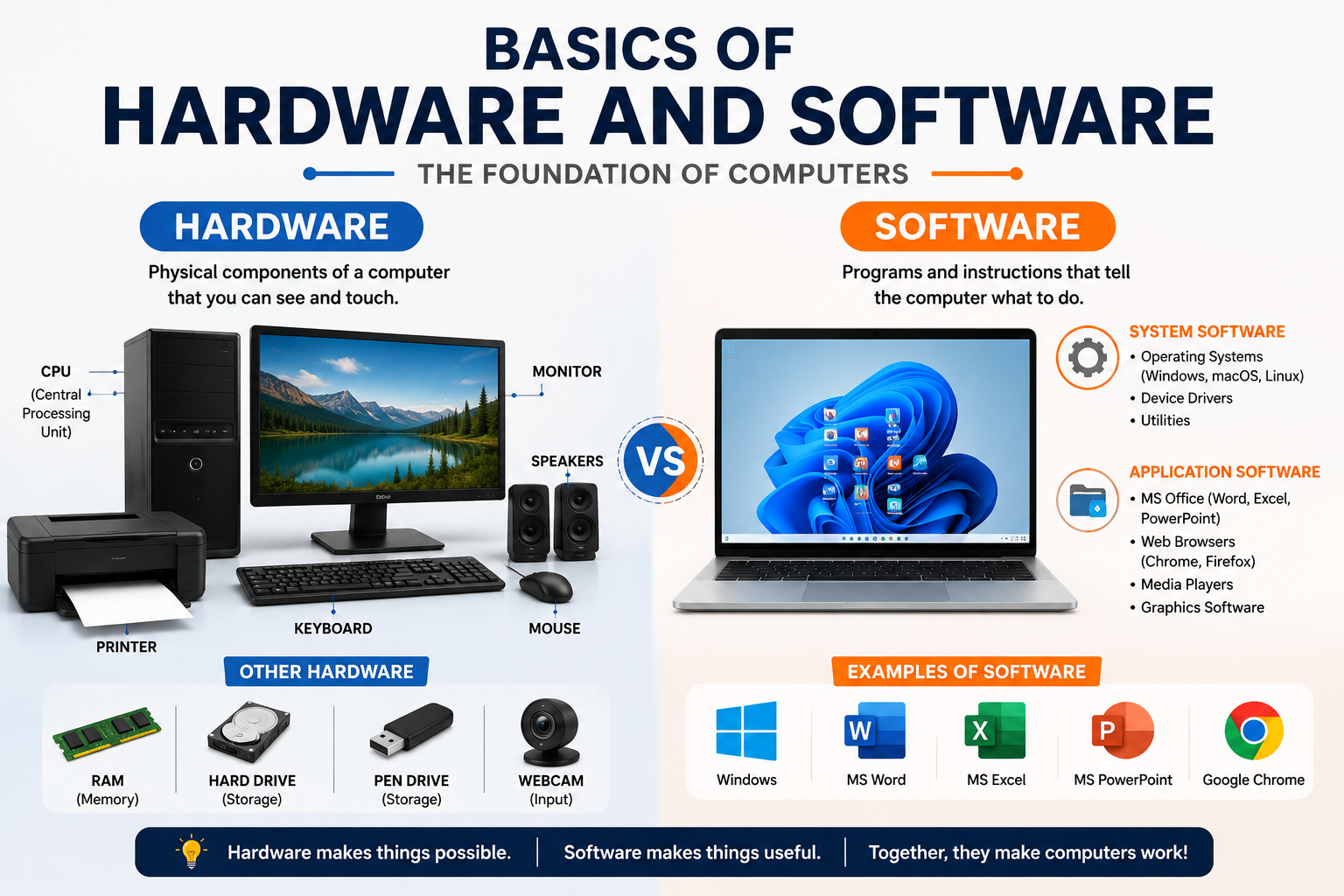
What is Hardware?

Hardware refers to the physical parts of a computer that can be seen and touched. These components work together to perform computer operations.

Types of Hardware

1. Input Devices

Used to enter data into the computer.

  • Keyboard
  • Mouse
  • Scanner
  • Microphone
  • Webcam

2. Output Devices

Used to display results from the computer.

  • Monitor
  • Printer
  • Speaker
  • Projector

3. Storage Devices

Used to store data and files.

  • Hard Disk (HDD)
  • SSD
  • Pen Drive
  • Memory Card
  • CD/DVD

4. Processing Devices

Help the computer process data.

  • CPU (Central Processing Unit)
  • Motherboard
  • RAM

What is Software?

Software is a set of programs and instructions that tells the computer what to do. Software cannot be touched physically.

Types of Software

1. System Software

Controls and manages computer hardware.
Examples:

  • Windows
  • Linux
  • macOS
  • Android

2. Application Software

Used to perform specific tasks.
Examples:

  • MS Word
  • Excel
  • PowerPoint
  • Google Chrome
  • Photoshop

Difference Between Hardware and Software

Hardware Software
Physical components Programs and instructions
Can be touched Cannot be touched
Examples: Keyboard, Monitor Examples: MS Word, Windows
Requires software to work Requires hardware to run
Scroll to Top